Restaurants & private dining
Showcase your dishes and give guests the option to order from their table alongside your existing waiter service.
Make it easier to order more of what you serve.
Bring your menu to your guests’ phones and give them the freedom to order when they’re ready. Branded digital menus, table and room ordering, and one place for your team to receive every selection.
No guest app. No guest account. Your menu, your identity.
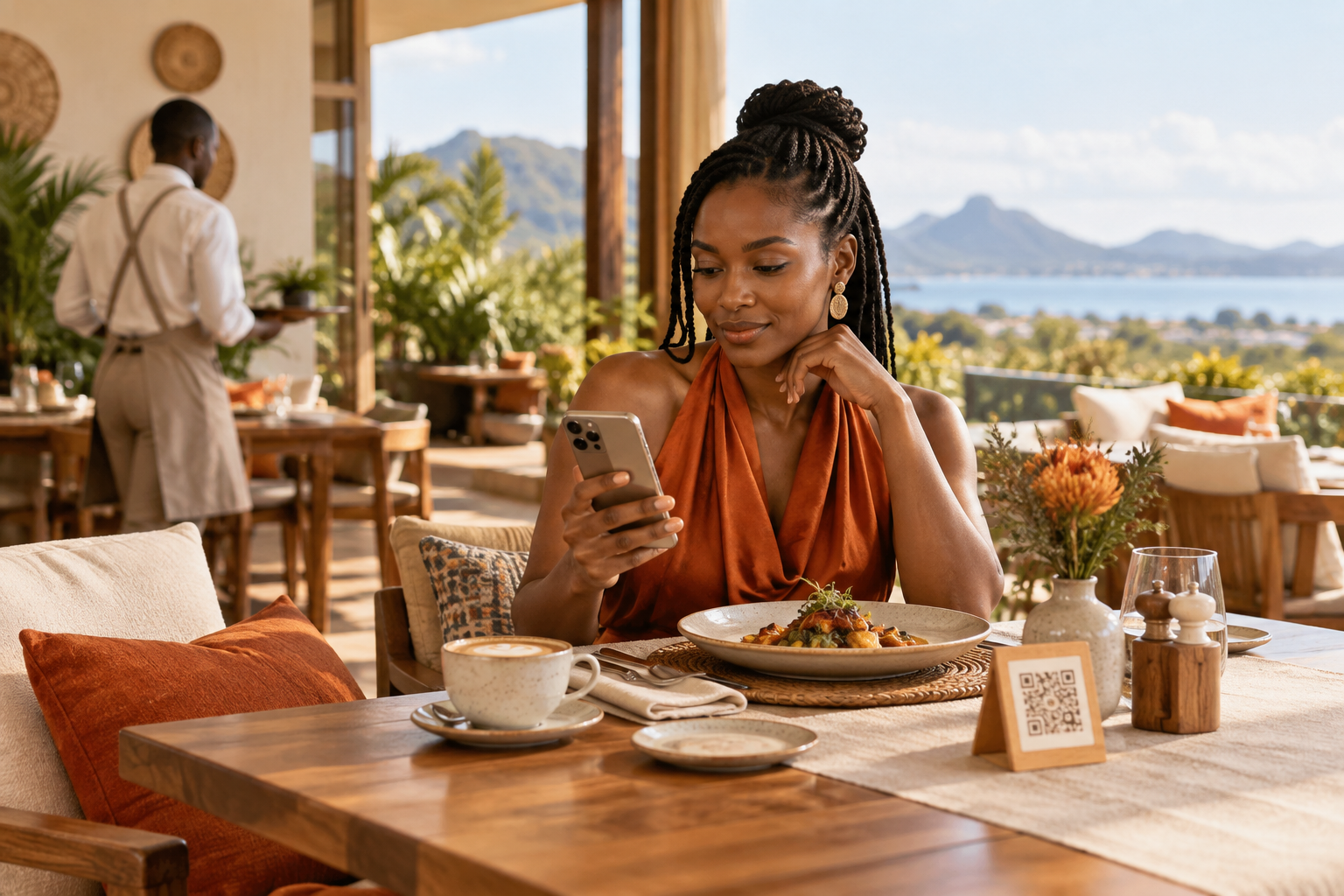
From the first coffee to another round or dinner in the suite, give guests a convenient way to browse and order. Your team receives the selection with its table or room details attached, ready to review and fulfil.
Open the menu from the table or room QR.
Discover dishes, drinks and house favourites.
Make a selection and add any notes.
Submit the order for your team to review.
By removing touchpoints and sending orders direct to the kitchen, you can save labour, boost productivity and streamline operations.
Wait times are reduced, customer service is improved and you can serve more covers. Guests can also pay online when they’re finished, so you’re ready for your next guests.
Discuss Your Service SetupEach selection arrives with its service location and guest notes.
Give your team a clear place to see what guests have requested.
Update progress and respond to messages about their order.
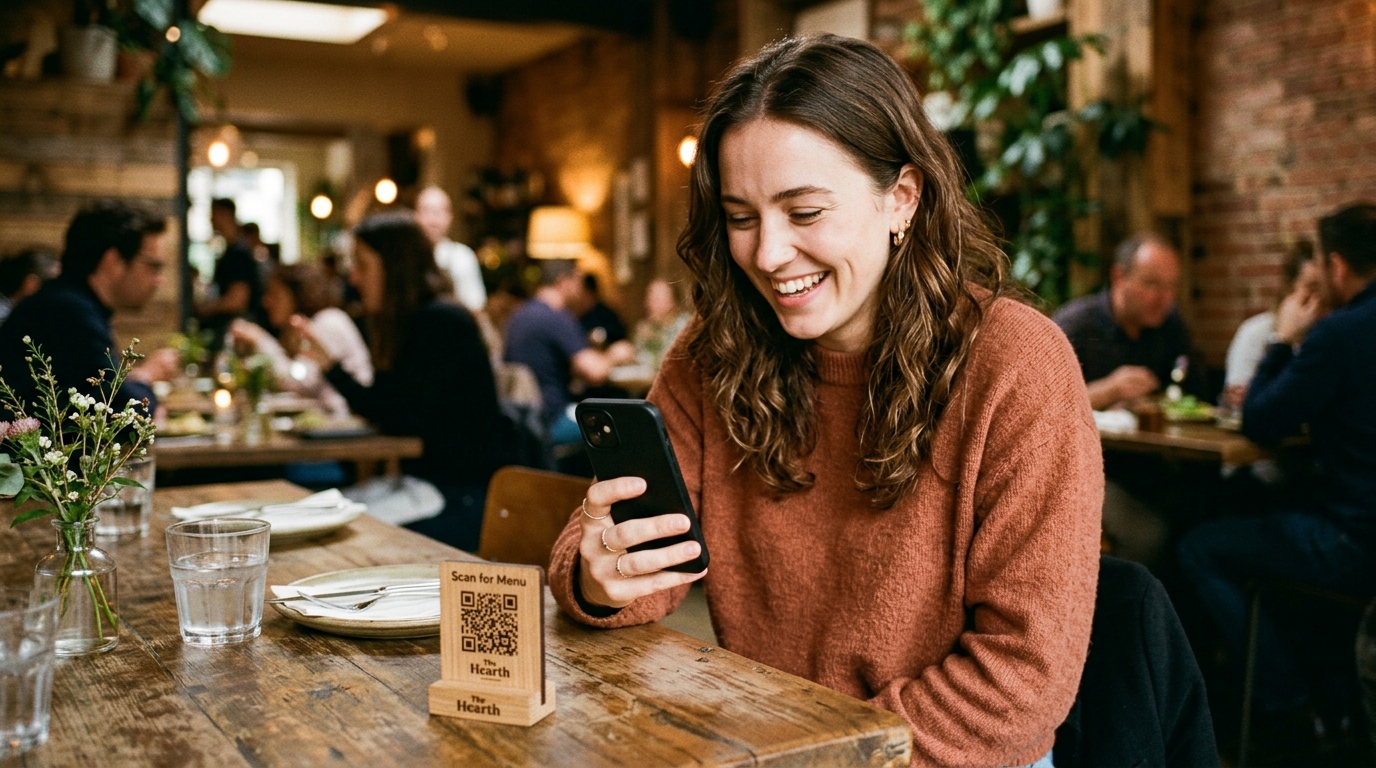
Let guests choose at their own pace. They can explore your menu, decide what they would like and send an order without waiting for someone to take down their selection.
Your team remains available for the advice and attention that make hospitality personal.
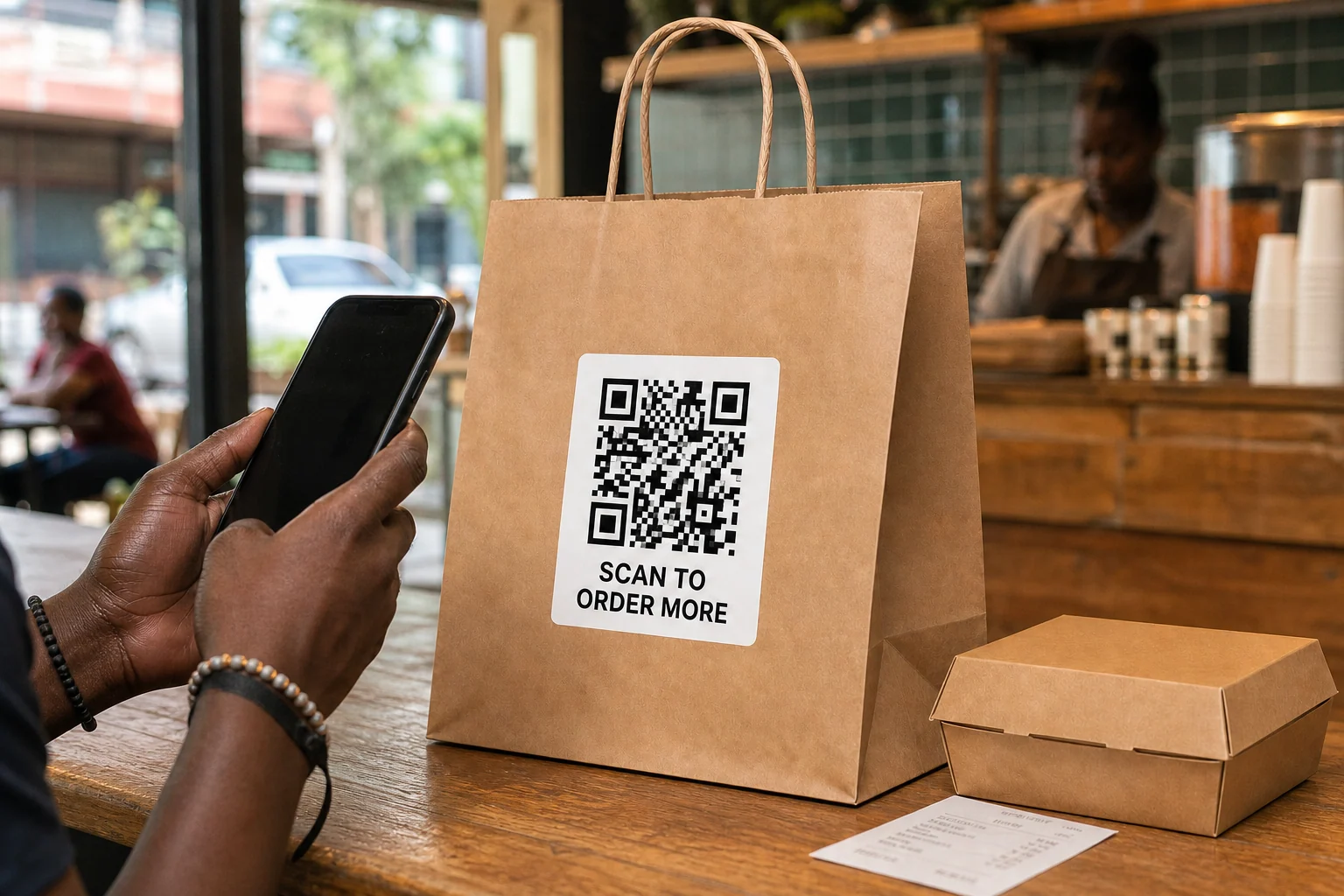
Try Mobile OrderingGive returning customers an easy way to find what they enjoyed. Share your delivery menu link or place a QR code on your packaging. Customers can browse your current offering, prepare their selection and send it to your team through WhatsApp.
Showcase your dishes and give guests the option to order from their table alongside your existing waiter service.
Make breakfast, lunch and another coffee easy to order. Let seated guests browse while your team looks after the room.
Keep the conversation going. Guests can choose their drinks and order another round without leaving their seat.
Bring your food and beverage offering into guest rooms. Receive room orders with their service location attached for your team.
Compare LinkMenuz with a service that relies on printed menus and in-person or phone order taking.
| What matters | With LinkMenuzMobile Ordering | Without LinkMenuzPrinted menus · In-person / Phone |
|---|---|---|
| Sales opportunities | Featured dishes, photographs and extras give guests more of your offering to discover as they browse. | Additional recommendations rely on the printed menu and conversations with staff. |
| Taking orders | Guests submit selections from their phones, with incoming orders collected in one dashboard. | Each order needs a staff member to take it at the table or over the phone. |
| Additional rounds | Guests can reopen the menu and send another order from their seat. | Guests need to reach a server or call again to place another order. |
| Order details | Items, quantities, service locations and guest notes arrive together for review. | Staff record and pass the details through the venue’s existing process. |
| Menu updates | Publish changes through the same QR codes. | Printed menus need replacing or supplementing when the offering changes. |
| Sold-out items | Mark dishes unavailable on the digital menu during service. | Staff explain availability verbally or amend printed materials. |
| Guest updates | Guests can view order progress and exchange messages about their order. | Updates usually require a conversation or phone call. |
| Menu insights | Review recorded menu activity and order analytics. | Printed menus do not capture browsing activity; other systems may provide sales reports. |
The comparison describes ordering workflows. Service speed and fulfilment depend on your team.
Give guests a direct route from browsing to submitting their selection.
Present your food and drinks with your logo, photographs and a visual style suited to your venue.
Keep incoming in-house orders, service locations and guest notes together for your team.
From presentation to service, explore what is included. Open any feature for the details.
Take a seat at The Aura Table, our demonstration dining venue. Browse the dishes, discover a signature selection and build your order. See how LinkMenuz could introduce guests to everything you serve.
Open the DemoThe Aura Table is a fictional venue. The demonstration does not send real orders.

Bring mobile food and beverage ordering to your venue. Help guests discover more of your menu, make their selection and stay connected to your team—from the first order to the final round.